 Home
Home  Top Charts
  FEATURED
  ARTICLES





Introduction: Getting Started with ClassDojo
This guide will help you quickly set up and start using ClassDojo, a powerful tool for classroom management and communication. By following these steps, you’ll be able to create your account, set up your classroom, and begin engaging with students and parents in just 10 minutes daily.
Prerequisites & Setup
Before you begin, ensure you have the following:
- A valid email address to create your ClassDojo account.
- A device (smartphone, tablet, or computer) with internet access.
- Basic information about your classroom (e.g., student names, grade level).
Core Step-by-Step Guide
Step 1: Creating Your Account
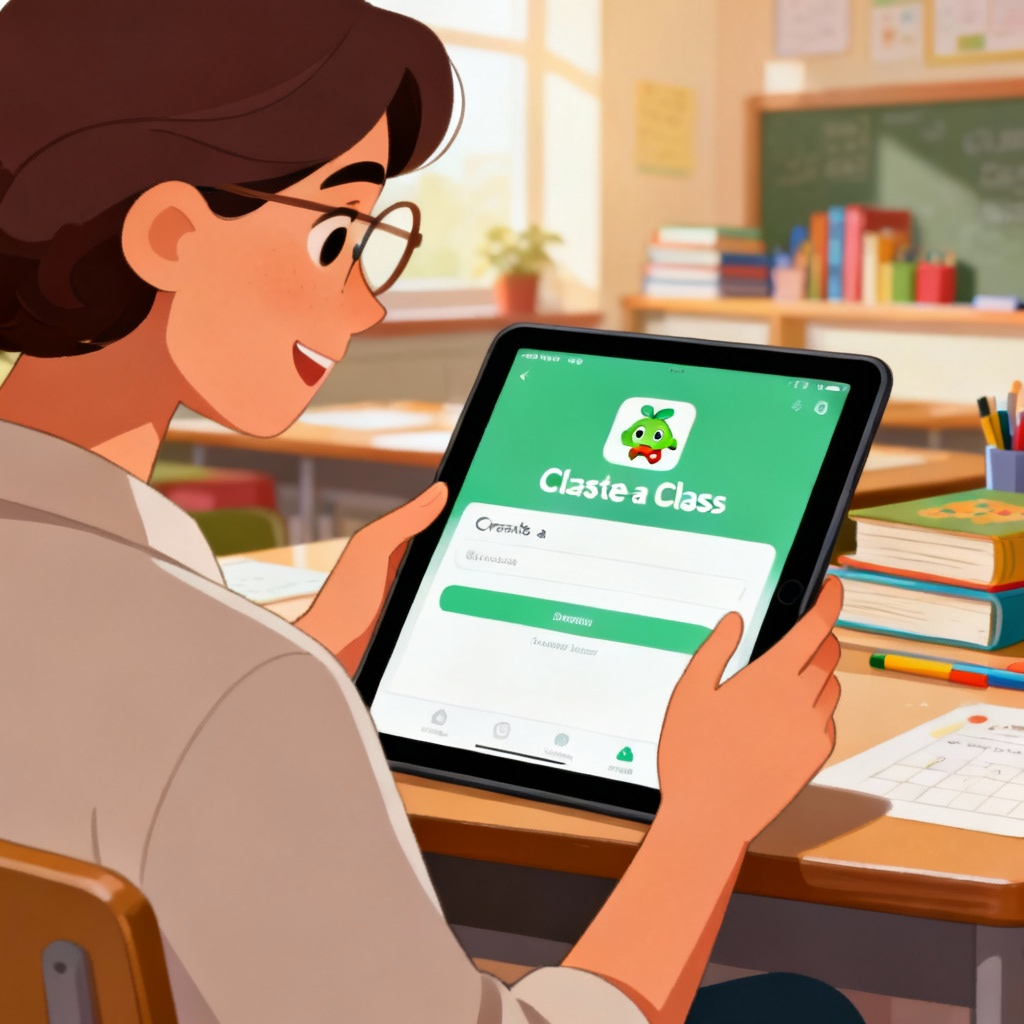
Open your browser or app store and search for ClassDojo. Download and install the app, or visit www.classdojo.com. Tap Sign Up and select Teacher. Enter your email address, create a password, and tap Create Account.
Step 2: Setting Up Your Classroom
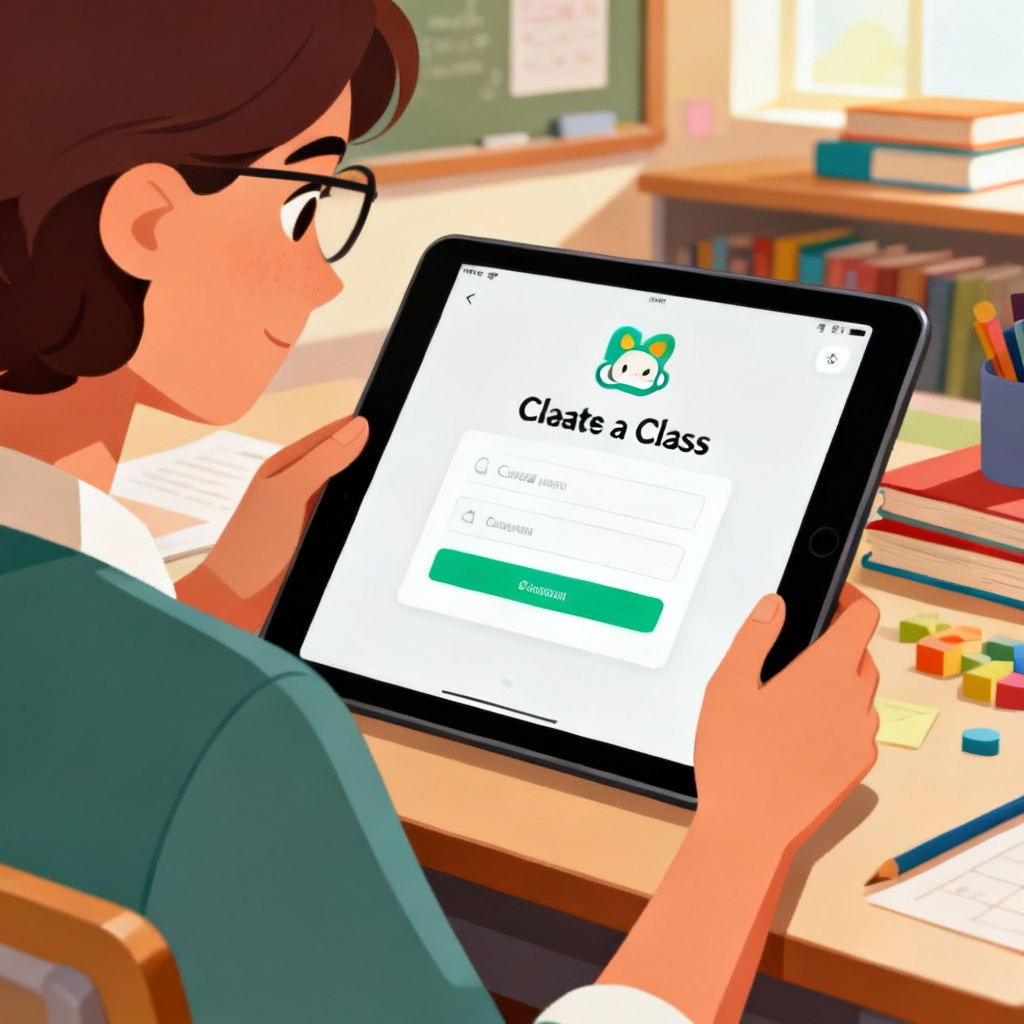
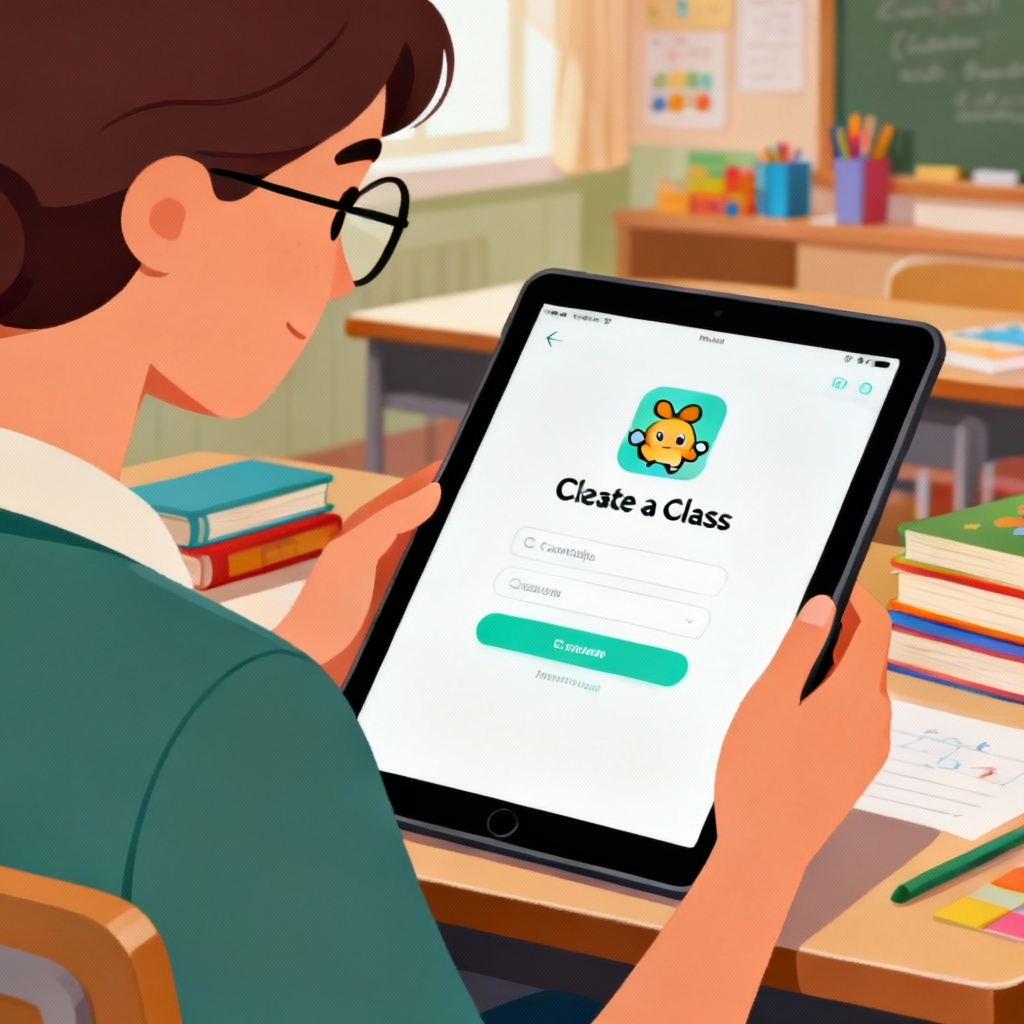
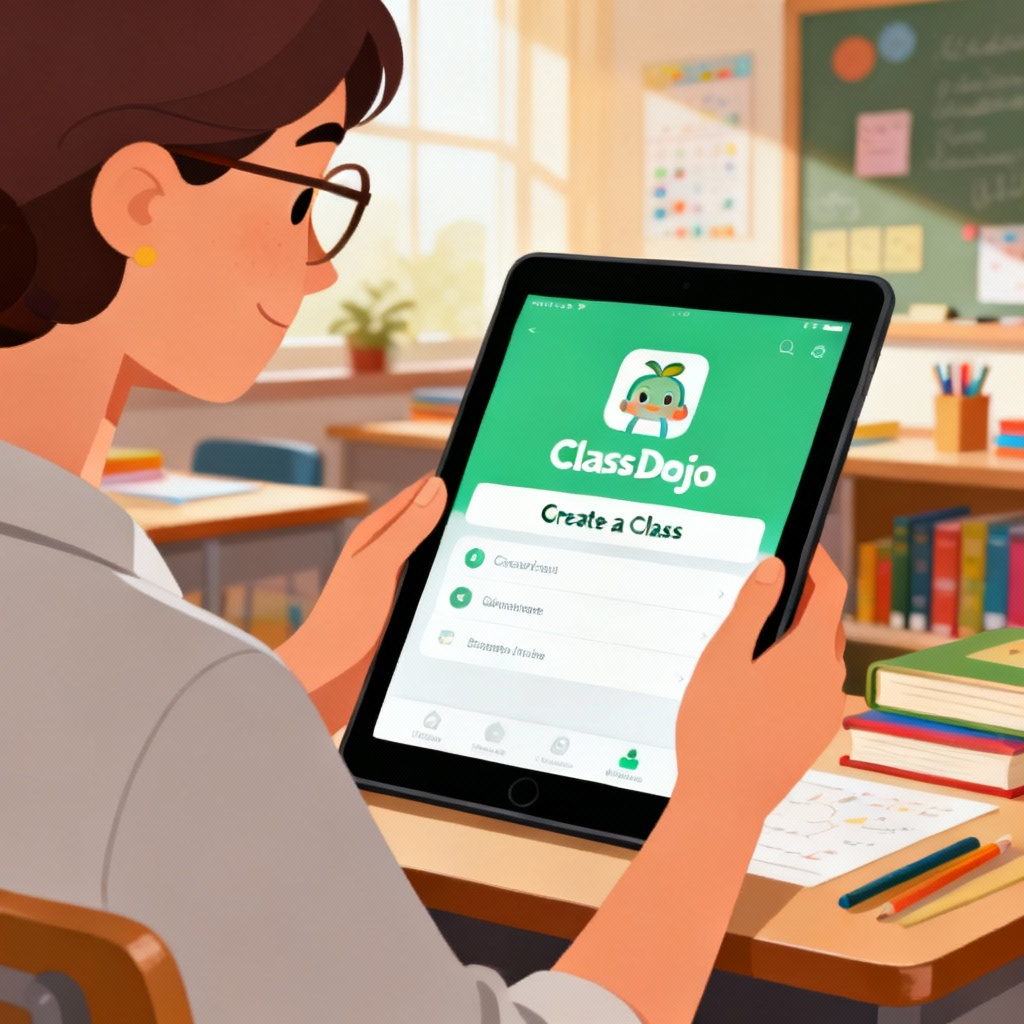
After logging in, tap Create a Class. Enter your class name (e.g., Grade 5 Math) and select the grade level. Tap Add Students and enter each student’s name or upload a CSV file. Assign each student a unique avatar by tapping on their name and selecting an icon.
Step 3: Navigating the Main Dashboard
Familiarize yourself with the dashboard by exploring the Classroom, Messages, and Portfolio tabs. Tap Skills to customize behaviors and values you want to encourage (e.g., Teamwork, Creativity). Use the Random feature to select a student for participation or feedback.
Step 4: Inviting Parents and Students
Tap Invite Parents to share a unique code or send email invitations. For students, tap Invite Students and share the class code or print login cards. Encourage parents and students to download the app and join your class.
Step 5: Starting Your Daily Routine
Spend 2 minutes at the start of class giving positive feedback using the Skills feature. Use the Timer tool to manage classroom activities efficiently. End the day by sharing highlights in the Portfolio tab to keep parents informed.
Common Mistakes to Avoid
- Skipping the student avatar assignment: Avatars make the experience more engaging for students.
- Not inviting parents early: Delaying parent involvement can reduce communication effectiveness.
- Overloading feedback: Focus on a few key behaviors to avoid overwhelming students.
FAQ
Q: How do I reset my password?
Q: Can I edit a student’s name after adding them?
Q: How do I delete a class?
Q: Can I use ClassDojo on multiple devices?
Q: How do I add a co-teacher to my class?
Final Checklist & Key Takeaways
- Create your ClassDojo account and log in.
- Set up your classroom by adding students and assigning avatars.
- Customize skills and behaviors to encourage positive actions.
- Invite parents and students to join your class.
- Use the dashboard tools (e.g., Skills, Timer, Portfolio) daily to enhance classroom management.
By following this guide, you’ll be ready to maximize your classroom efficiency and engagement with ClassDojo in just 10 minutes a day!
Explore more about ClassDojo features and benefits to enhance your classroom experience.


![Rocket Cleaner Not Working? Fix Common Issues in 3 Minutes [2024 Guide]](https://img.buzzsight.co/Uploads/articles/20251217/ff62acf7ce7cdd47ccbc6d7564d3d80c.png)