Home
Home  Top Charts
  FEATURED
  ARTICLES





Why use AI image generation in Canva?
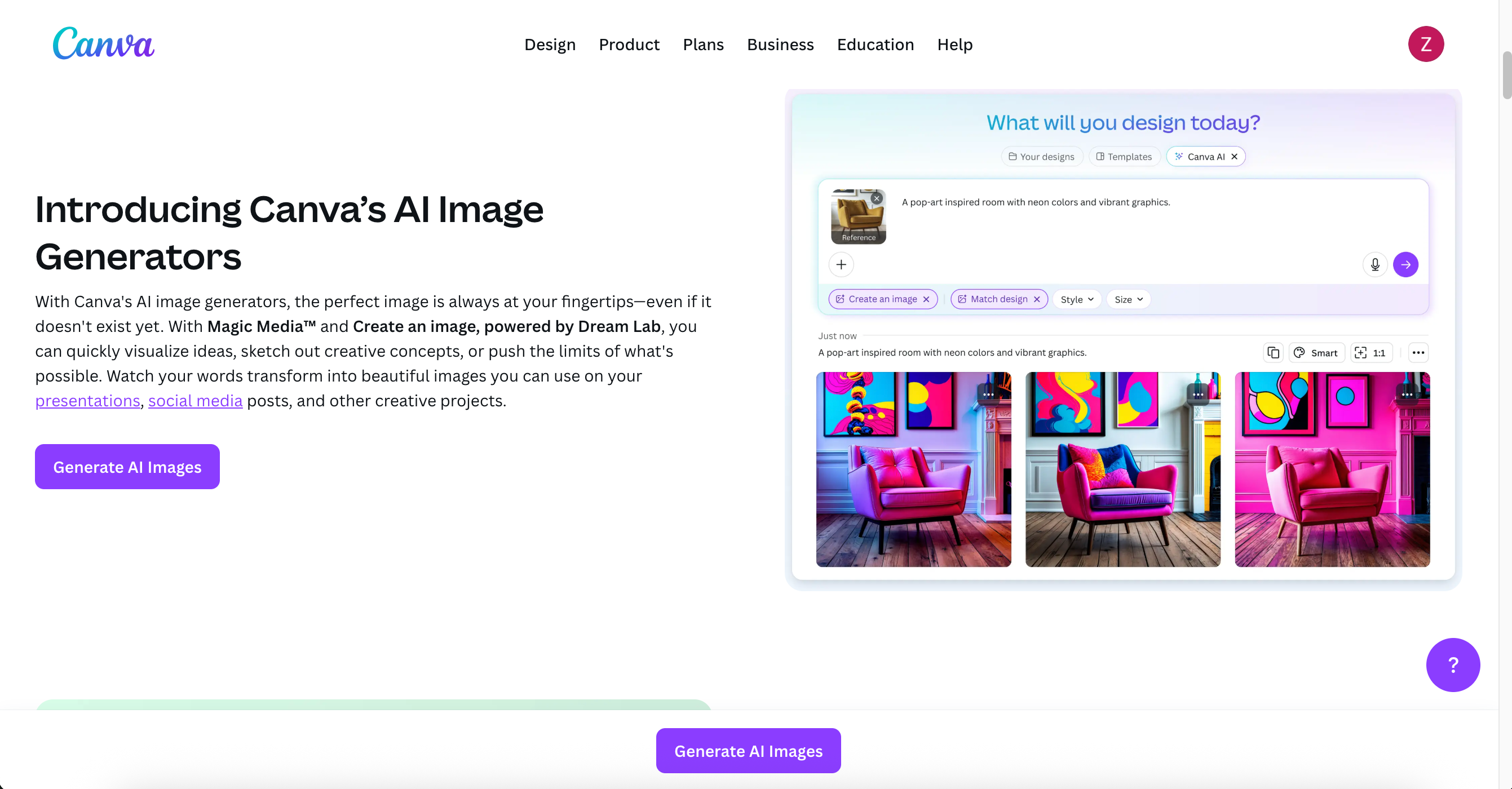
Canva combines a text-to-image generator with a full design editor. That means you can:
-
Create concept visuals in seconds and immediately place them into templates (social posts, slides, posters).
-
Edit, add typography, and export optimized files without switching apps.
-
Produce classroom resources or marketing assets quickly while keeping consistent branding.
These advantages make Magic Media particularly useful for educators testing image generation in learning environments and for teams who need quick visual iterations.
Getting started: account setup and first design
-
Visit canva.com and click Sign up (or Log in if you already have an account). You can register with email or Google. During signup you’ll be asked how you plan to use Canva (e.g., teacher, student, personal).
-
After logging in, click Create a design (top right). Choose a format (Instagram post, poster, presentation, etc.) to open the editor.
-
In the editor you’ll see a vertical toolbar on the left. That’s where Magic Media lives.
Finding Magic Media in the editor
-
Click Elements in the left toolbar.
-
Under the Elements list look for AI image generator (sometimes labeled Magic Media or Text to Image).
-
Click Create your own to open the Magic Media panel. You’ll see three tabs: Images, Graphics, and Videos.
Generating images: step-by-step
-
Select the Images tab.
-
Type a clear, descriptive prompt (the more specific the prompt, the better the result). Example:
“Photorealistic giraffe walking down a busy city street, golden-hour light, shallow depth of field, 35mm lens.” -
Choose a style and an aspect ratio (square, portrait, landscape).
-
Click Generate Image. Canva will produce multiple variations — pick the one you like and drag it into your design.
-
To re-run or tweak a result, click the regenerate icon. To produce similar variants, click the three dots on the image and choose Generate more like this.
Tip: Start with a broad prompt and refine it (lighting, camera lens, mood, clothing, or color palette) until you get the desired look.
Generating graphics and short videos
-
Graphics tab: Great for stickers, flat illustrations, or stylized art. Example prompt: “A vase of tropical flowers, mid-century modern style, bold shapes.”
-
Videos tab: Describe a short scene and click Generate Video. Generated clips are typically a few seconds long and may include a watermark on free accounts.
For both graphics and video, the workflow mirrors images: write a prompt → select style → generate → drag into your design.
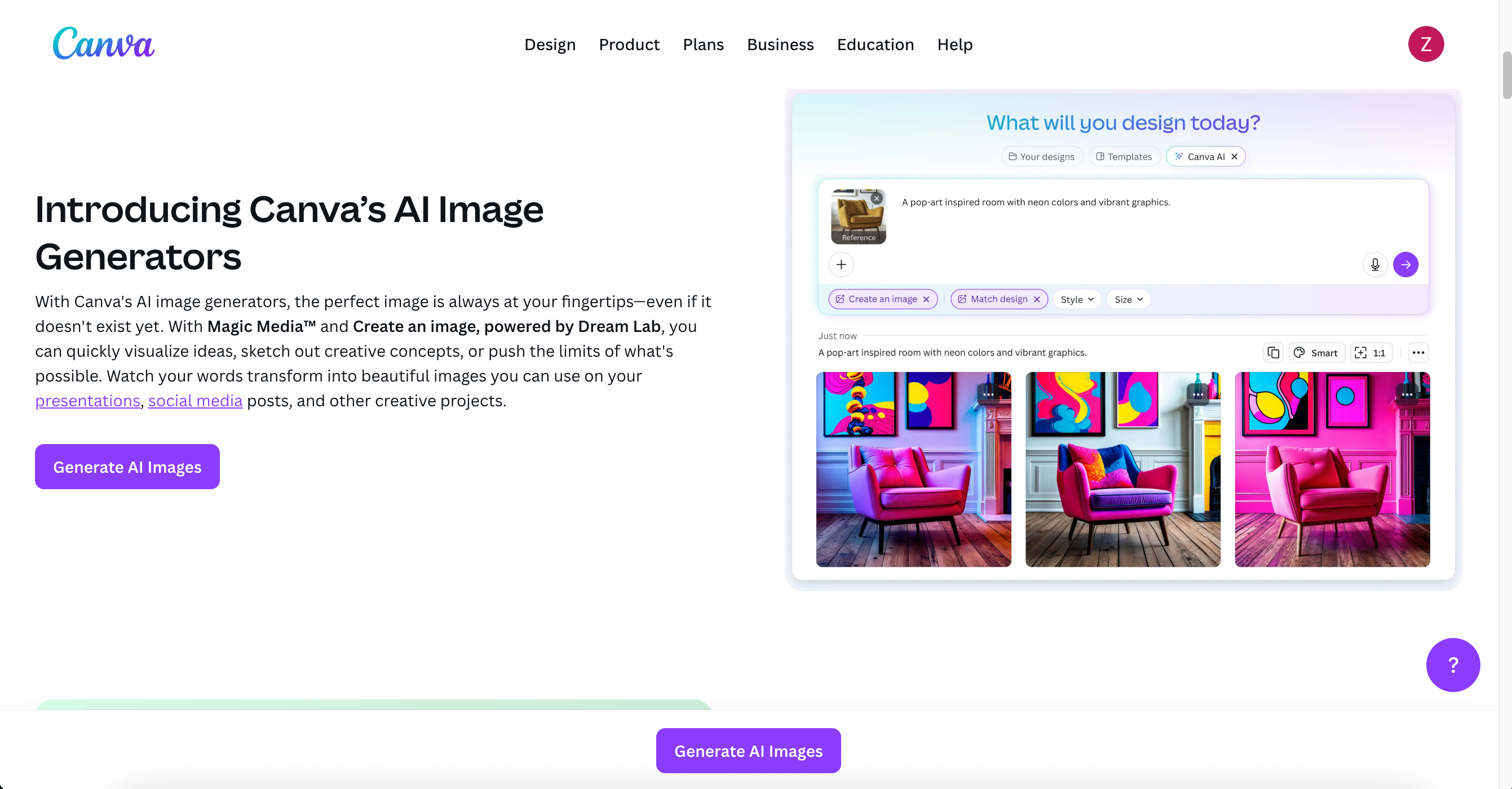
Practical examples from the field
-
Photorealistic image: A giraffe in an urban street (useful for attention-grabbing blog headers or social posts).
-
Graphic asset: A set of floral illustrations for a poster series (quick way to create custom decorative elements).
Both examples can be adjusted and exported directly from Canva, which streamlines the process from idea to publish-ready file.
File types, editing, and export
Generated images are added to your design as PNG/JPEG assets you can crop, layer, and annotate. Use the editor’s filters, text tools, and brand kit to match fonts and colors. Export presets allow optimized sizes for web and social (choose WebP/JPEG for best performance).
Pricing & usage limits (summary)
-
Free users: Limited lifetime uses for Text-to-Image (e.g., a capped number of generations).
-
Pro / Teams / Education: Higher monthly generation limits and access to additional features.
-
Canva for Education: Free for eligible teachers and students; many Magic Media capabilities are available under education allowances.
(See Canva pricing pages inside the app for the most current limits.)
Limitations & policy considerations
-
Generated videos may carry watermarks on free plans.
-
Output quality can vary by prompt specificity; expect to iterate.
-
Always review Canva’s Trust Centre, privacy policy, and AI use terms before publishing images that include likenesses or potentially copyrighted elements.
Classroom & team use
Magic Media can be a valuable teaching tool for media literacy and creative projects — but make sure students understand ethical generation: cite AI-created assets, avoid generating realistic images of real people without consent, and review school policies for AI use.
Quick prompt bank (paste into Canva)
-
Photorealistic header: “High-resolution aerial photo of a coastal town at sunrise, soft warm light, cinematic.”
-
Graphic sticker: “Flat sticker of a smiling avocado, bold outline, playful style.”
-
Short video concept: “4-second animation of a sunflower blooming, loopable, cheerful soundtrack placeholder.”
Accessibility & SEO tips
-
Add descriptive alt text that mirrors the prompt and context (e.g., “Photorealistic giraffe walking down a busy city street, golden-hour light”).
-
Use generated images as unique featured images to reduce reliance on stock photography and improve click-through rates.
Further reading and support
For official documentation and the latest feature updates, visit Canva’s help pages and Magic Studio resources inside the app. If you need institutional help or have questions about implementing image generation in an education setting, contact Canva’s Help Page on Magic Media.
Closing
Canva’s Magic Media brings text-to-image, graphic generation, and short video capabilities into a single editor — ideal for teachers, marketers, and creators who want to move from prompt to polished asset quickly. Open Canva, experiment with prompts, and drop the best results into your next post or lesson.
Canva’s AI features — bundled under Magic Media inside Magic Studio — make it fast and simple to generate photorealistic images, stylized graphics, and short AI videos from text prompts. This guide walks you through signing up, finding Magic Media, practical steps for generating images and graphics, example prompts, usage limits, plus tips for classroom or team workflows